An AI chatbot for PDF documents lets students upload a file, ask questions in plain language, and get quick answers with sources they can check. Adobe Acrobat lets you chat with a PDF, summarize sections, and analyze data in tables, and numbered references highlight the matching text in your document.
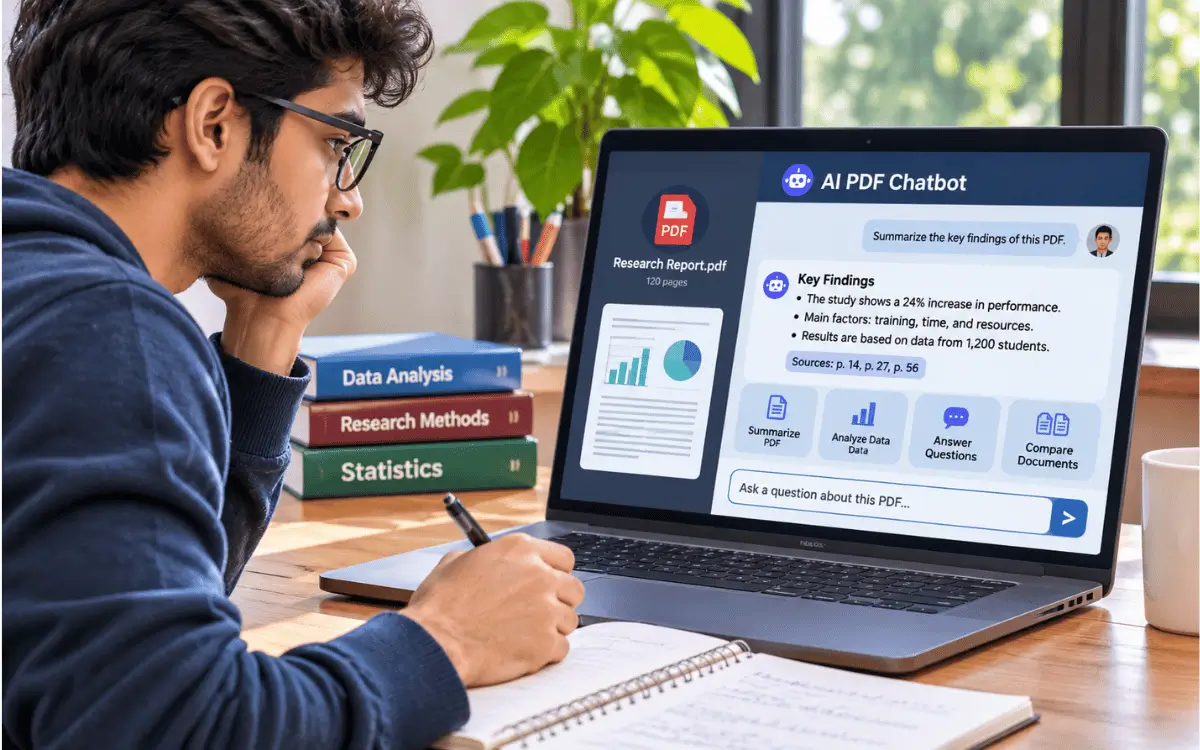
This article is for students who need quick answers from PDF content, including help analyzing the data inside it.
AI PDF Data Analysis for Students
AI PDF data analysis for students means asking a chatbot to read the tables, charts, and figures in a PDF and explain what they show. Adobe’s page says its assistant analyzes content including charts and tables, and that you can ask research questions that analyze data across tables. OpenAI’s help says ChatGPT can take spreadsheet and CSV uploads, which suits data that was never in a PDF. Always compare a number the AI reports with the table it came from, and ask it to name the page or table behind each figure.
- Tables in a PDF: Adobe’s page says you can ask questions that analyze data across tables shared in the document.
- Key facts: Adobe’s page says you can extract facts, figures, clauses, and insights from a PDF.
- Source check: Adobe’s page says numbered references highlight the related source content, so you can confirm a figure in one click.
- Spreadsheets: OpenAI’s help says CSV files and spreadsheets have a size limit of approximately 50 MB, depending on row size, and points to a separate data analysis guide.
- Compare sources: Adobe’s page lists a prompt that asks what changed between two documents.
AI Tools to Summarize a PDF for Students
AI tools that summarize a PDF for students produce an overview, section notes, or a short list of key points that you can check against the original. Adobe’s page says you review a brief AI overview of an uploaded file and can ask for the document’s five most important points or a summary of a specific section. Smallpdf says its AI PDF summarizer returns an automatic overview and offers built in chat with suggested questions. Read the summary first, then open the sections it points to.
- Adobe overview: Adobe’s page says you can pick a suggested question after the overview, such as what the most important sections are.
- Section summaries: Adobe’s page says you can ask for a summary of just the section you need.
- Smallpdf: Smallpdf’s blog says you upload the file and receive an automatic overview, then ask detailed follow up questions in its chat.
- ChatGPT: Smallpdf’s blog says ChatGPT can give an overview, section by section notes, or answers about the document, and that you write the prompt yourself.
- Check names and numbers: compare each name, date, and figure in a summary with the page it came from before you use it.
Best AI for Reading a PDF and Analyzing Data
The best AI for reading a PDF and analyzing data depends on whether you want one quick file answered or a repeatable workflow, and the options include Adobe Acrobat, ChatGPT, Smallpdf, ChatPDF, and Humata. Adobe’s tool answers from a file you upload and links answers to the source. OpenAI’s help says ChatGPT accepts PDF, DOCX, and TXT files and spreadsheets. Guides describe ChatPDF and Humata as dedicated PDF chat tools with free tiers. Compare the table, then try one real assignment.
| Platform | Best For | Key Details |
| Adobe Acrobat chat with a PDF | Answers you can verify in the file | Accepts PDF, DOCX, PPTX, TXT, and RTF; analyzes charts and tables; numbered references highlight source text; free to try with sign in |
| ChatGPT | PDFs plus spreadsheets in one chat | OpenAI’s help says it accepts DOCX, PDF, and TXT up to 512 MB per file, CSV and spreadsheets up to about 50 MB, and gives free users 3 uploads a day |
| Smallpdf | Summaries inside a PDF toolkit | Its blog says its AI PDF summarizer gives an automatic overview, with built in chat and suggested questions |
| ChatPDF | A simple chat with one PDF | Guides list a free plan of 2 PDFs a day, up to 120 pages and 10 MB per file, and describe clickable source citations |
| Humata | Students on small page budgets | Guides list a free plan of 60 pages a month with limited answers, and describe source citations |
Limits change: OpenAI says it may lower upload limits during peak hours, and guides quote different limits for ChatPDF and Humata, so check each vendor’s current page.- Guide sources: the ChatPDF and Humata details come from third party guides.
- Prices: guides quote different prices, so this article leaves them out.
PDF Upload Chat: What Limits and File Types to Expect
PDF upload chat works by uploading a file to a chatbot and asking questions in the same conversation, and the limits depend on the tool. Adobe’s page says you can drag and drop one or more PDF, DOCX, PPTX, TXT, or RTF files, and that non PDF files are converted to PDF. OpenAI’s help says documents have a maximum size of 512 MB and free users get 3 uploads a day. I did not find a stated file size limit on Adobe’s page, so test a large file first.
- Several files: Adobe’s page says you can drop one or more files at once.
- Privacy: Adobe’s page says uploaded files are deleted unless you sign in to save them, and that Adobe does not use customer content to train its language models.
- ChatGPT data controls: Smallpdf’s blog says a data setting can be switched off under Data Controls, and OpenAI’s help points to its data controls FAQ for how consumer data is used.
- Languages: Adobe’s page says the assistant supports English, Japanese, French, German, Italian, Spanish, and Portuguese.
- Free: Adobe’s page says you can chat with documents and review content for free.
Frequently Asked Questions
Is a free AI PDF chatbot enough for coursework?
Often, for a few files. Adobe’s page says you can chat with documents and review content for free, OpenAI’s help gives free ChatGPT users 3 file uploads a day, and guides list a free ChatPDF plan of 2 PDFs a day. A semester of reading may hit those caps, so check each limit before an exam week, and keep a second option ready.
Can it analyze a spreadsheet as well as a PDF?
It depends on the tool. OpenAI’s help says ChatGPT accepts CSV files and spreadsheets and points to a data analysis guide. Adobe’s page lists PDF, DOCX, PPTX, TXT, and RTF files and describes analyzing tables and charts inside them, so export a spreadsheet to PDF before you upload it. Check the result against the source table either way.
How do I check an AI answer from a PDF?
Open the source. Adobe’s page says selecting a numbered reference highlights the related text in your file, which lets you confirm a quote, number, or claim. Guides describe clickable citations in other PDF chat tools as well. Never paste an AI answer into an assignment without reading the passage it points to.
What about a long textbook?
Split it if you need to. OpenAI’s help says documents can be up to 512 MB, and a Smallpdf guide notes that file size, token count, and scan quality matter more than page count. Adobe’s page does not state a size limit. Upload a chapter at a time, ask for the key points, and check the highlighted passages before you rely on a summary.
An AI chatbot for PDF documents gives students quick answers and summaries, and the best habit is to verify each answer against the source text.